How to Generate a Workout Plan with RepTrack's AI
8 min read · May 2025 · by Manikanta Sirumalla

How to Generate a Workout Plan with RepTrack's AI
Writing a good training program takes experience. You need to balance volume across muscle groups, sequence exercises intelligently, build in progressive overload, and match everything to your available equipment and schedule. Most people either copy a cookie-cutter plan from the internet or pay a coach to write one. RepTrack gives you a third option: an AI plan generator that builds a personalized, periodized program from your inputs in under a minute.
The generator is powered by Llama 3.3 70B, a large language model that runs through a structured pipeline designed specifically for exercise programming. It is not a chatbot writing freeform workout advice. It is a constrained system that takes your goal, experience level, training split preference, equipment access, and schedule, then outputs a multi-week program with prescribed sets, reps, rest periods, and progression rules. Every generated exercise is matched against RepTrack's 1,700+ exercise database, so the plan lands as a fully trackable template the moment you accept it.
Here is how to use it, step by step.
Before You Start
The AI generator pulls from your RepTrack profile to calibrate the program. Before generating your first plan, make sure the following profile fields are up to date:
- Body weight: used for relative strength benchmarks and load recommendations
- Experience level: beginner, intermediate, or advanced changes exercise selection, volume, and intensity
- Activity level: influences recovery assumptions and session density
- Goal: fat loss, muscle gain, strength, or maintenance shapes the entire program structure
If your profile is incomplete, the generator will still work, but it will use default assumptions where data is missing. Better inputs produce better programs.
Step 1: Open the AI Plan Generator
- Navigate to the Workouts tab
- Tap See All under "Workouts Created By You"
- Tap Generate with AI
This opens the AI plan configuration screen, where you will set your parameters before generation begins.
Step 2: Set Your Training Goal
The first selection is your primary training goal. This is the single most important input because it determines the rep ranges, rest periods, volume distribution, and progression model the AI will use.
- Muscle Gain (Hypertrophy): moderate loads, higher rep ranges (8-12), shorter rest periods, higher total volume per muscle group, emphasis on time under tension
- Strength: heavier loads, lower rep ranges (3-6), longer rest periods, emphasis on compound movements, lower accessory volume
- Fat Loss: moderate-to-high rep ranges, circuit-style elements, shorter rest periods, higher overall training density, compound-dominant exercise selection
- General Fitness: balanced approach across rep ranges, moderate volume, mix of compound and isolation work
Choose the goal that matches your current training phase. If you are unsure, muscle gain is the most broadly useful default for anyone who trains with weights regularly.
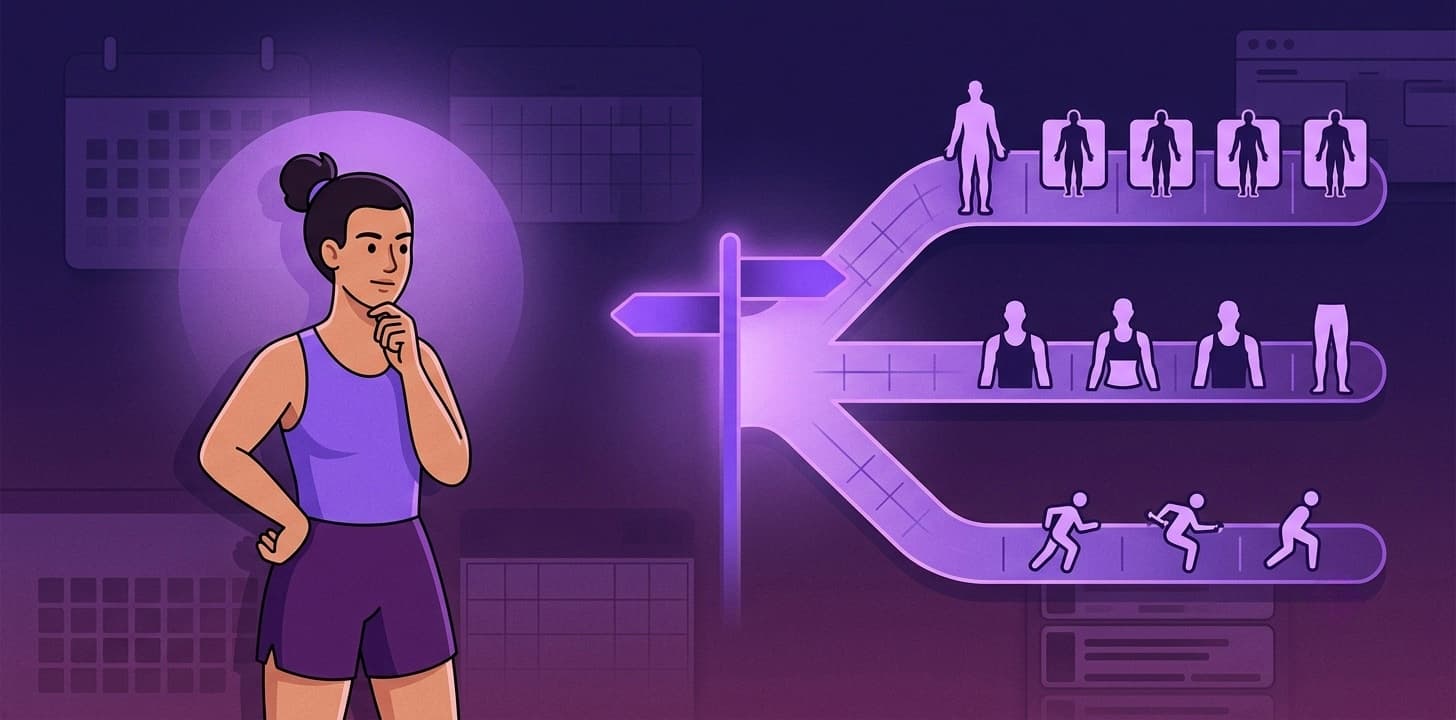
Step 3: Choose Your Training Split
The split determines how muscle groups are distributed across your training days. The AI generator offers several proven structures:
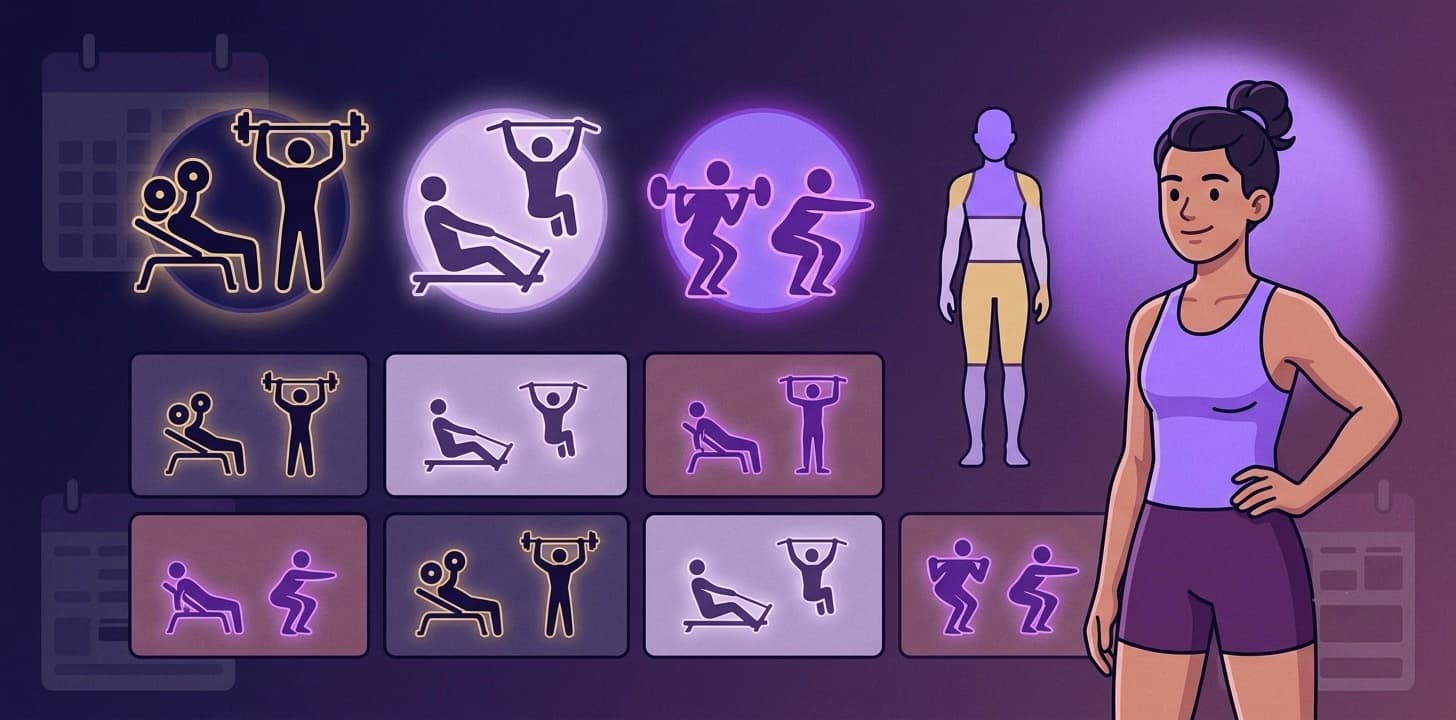
- Push / Pull / Legs: chest, shoulders, triceps on push day; back, biceps on pull day; quads, hamstrings, glutes, calves on leg day
- Upper / Lower: all upper body muscles one day, all lower body muscles the next
- Full Body: every major muscle group trained each session, lower volume per group
- Bro Split: one or two muscle groups per day, high volume per group, typically 5-6 days per week
- Custom: specify your own grouping if none of the presets match
If you are training 3-4 days per week, Upper/Lower or Full Body typically provides better frequency. If you are training 5-6 days, Push/Pull/Legs or a Bro Split allows more volume per session. For guidance on choosing the right split, see the training split guide.
Step 4: Select Your Equipment
Tell the AI what equipment you have access to. This is critical for generating a program you can actually execute.
- Full Gym: barbells, dumbbells, cables, machines, racks, benches
- Home Gym: dumbbells, adjustable bench, pull-up bar, resistance bands
- Minimal Equipment: dumbbells and bodyweight only
- Bodyweight Only: no equipment at all
The AI will only select exercises that match your equipment profile. If you choose Home Gym, you will not see barbell squats or cable flyes in your program. Every exercise will be something you can perform with the gear you have.
Step 5: Set Your Schedule
Specify which days you can train and how long each session can run.
- Training days per week: 2 through 7
- Preferred days: select specific days (e.g., Monday, Wednesday, Friday, Saturday)
- Session duration: 30, 45, 60, 75, or 90 minutes
The AI uses session duration to calibrate exercise count and rest periods. A 45-minute session gets fewer exercises with shorter rest. A 90-minute session allows for more accessory work and longer rest between heavy compounds. Be honest about your available time: an ambitious 90-minute program you cannot finish is worse than a realistic 60-minute one you complete every session.
Step 6: Generate the Plan
With all parameters set, tap Generate Plan. The AI processes your inputs and returns a complete program. You will see a progress indicator while the model works. Generation typically takes 10-20 seconds.
Once complete, the generated plan appears as a structured preview showing:
- Program overview: total duration, training days, split structure
- Each training day: day name, target muscle groups, exercise list
- Per exercise: exercise name, sets, reps, rest period, and any special instructions (tempo, RPE target)
Step 7: Review and Edit
The generated plan is a starting point, not a final product. Review it with these questions in mind:
- Do you recognize every exercise? If the AI selected an exercise you have never performed, tap it to see the exercise details. You can swap it for a more familiar movement.
- Does the volume look right? Count the total sets per muscle group per week. For hypertrophy, 10-20 sets per muscle group per week is the evidence-based range. For strength, 6-12 is typical.
- Is the session length realistic? Mentally walk through a session. If it looks too long, remove an accessory exercise or two.
To edit the plan before saving:
- Swap an exercise: tap any exercise row and search the database for a replacement
- Adjust sets or reps: tap the prescription to modify set count, rep range, or rest period
- Remove an exercise: swipe to delete exercises that do not fit
- Reorder exercises: drag exercises to change their sequence within a session
Step 8: Save and Start
Once you are satisfied with the plan, tap Save Plan. The program is saved to your workout library as a set of trackable templates. From there, you can start the program immediately or schedule it for a future date, just as you would with any template or imported program.
How the AI Structures Progressive Overload
The AI does not generate a static program. It builds in progression rules based on your goal:
- Hypertrophy programs progress by adding reps within a range before increasing weight. Once you hit the top of the rep range across all sets, the AI suggests a weight increase.
- Strength programs use percentage-based progression tied to estimated maxes, with planned deload weeks.
- Fat loss programs progress by reducing rest periods or increasing training density over the program duration.
As you log workouts and the AI accumulates performance data, it can factor your actual progression into future plan generations. The more you train with RepTrack, the more calibrated the AI becomes to your capabilities.
Regenerating a Plan
Not happy with the result? You do not need to start from scratch. Tap Regenerate to produce a new program with the same parameters. The AI uses different exercise selections and structures each time, so regenerating gives you genuine variety rather than a reshuffled version of the same plan.
You can also adjust your parameters before regenerating. If the first plan felt too volume-heavy, try selecting a shorter session duration or fewer training days. The AI will recalibrate accordingly.
When to Generate a New Plan
A generated plan is designed for a specific training block, typically 4-8 weeks. Signs it is time to generate a new one:
- You have completed the full program duration
- Your goal has changed (e.g., switching from fat loss to muscle gain)
- Your equipment access has changed (e.g., new gym membership or traveling)
- You have plateaued and need a different stimulus
- Your schedule has shifted and the current days no longer work
Tips for Better AI Plans
Keep your profile current. The AI uses your body weight, experience level, and activity level to calibrate exercise selection and volume. Outdated data produces mismatched programs.
Start conservative on session duration. A 60-minute program you finish is better than a 90-minute program you cut short. You can always add volume once you know the flow.
Use the split that matches your frequency. Three days per week with a Bro Split means each muscle group gets trained once every 7+ days: suboptimal for most people. Match your split to your available days using the split selection guide.
Regenerate rather than over-editing. If the generated plan needs more than 3-4 swaps, regenerate with adjusted parameters. The AI might find a better overall structure on the next pass.
Stack with cycle tracking. If you use RepTrack's cycle-adaptive training, the AI factors your cycle phase into intensity recommendations. Sync your cycle data before generating for the most personalized output.